
Android guide
How to save text messages on Android and back them up
Your texts live on your phone, and when backup is on, Google saves a copy for the next one. That is enough until something goes wrong: a restore that skips half your history, a switch to a new messaging app, a phone that stops working. Keeping messages for good takes two things, a backup and a copy you can read.
Quick answer: Turn on Google’s backup in Settings > Google > All services > Backup, so your texts move to your next phone. It can only be restored to a phone, not opened or read, so also export the conversations you care about to a PDF with an export app such as SMS Backup, and keep that file somewhere other than your phone.
Which way fits
| What you want | Use | What you get |
|---|---|---|
| Your texts on your next phone | Google’s built-in backup | A backup you restore while setting up a phone, but cannot open |
| A copy you can read, print or keep for years | An export app | A PDF, web page or text file of each conversation |
| A copy that keeps itself up to date | Scheduled backups to Google Drive | A fresh backup every day, week or month |
| A few messages, right now | A screenshot | Images of what is on screen |
Most people need the first two: the backup for convenience, the readable copy for safety.
Step 1
Turn on Google’s backup, and check it
Android phones with a Google account can back up your texts and picture messages to that account automatically, along with your apps, settings and call history. Google says chat (RCS) messages are included when you use Google Messages.
- Turn it on. Open Settings > Google (on some phones, Google services) > All services, and under Backup and restore tap Backup. Make sure Backup by Google One is on.
- Check it ran. On most phones, the same screen shows when the last backup was made. Before a reset or trade-in, tap Back up now and wait for it to finish; an old date is not good enough. On a computer, you can see what a backup holds: open Google One, go to Backup, open your phone and choose See details.
- Keep the phone in use. According to Google, if you don’t use the phone for 57 days, the backup is erased, except photos and videos in Google Photos. Turning backup off deletes it too.
What this backup cannot do matters as much as what it can:
- You cannot open it. There is no way to read the backed-up messages, search them or print them. They come back only by restoring them to a phone.
- Restoring happens at setup. Google offers it while you set up a phone, after a factory reset, or when you add your account to a phone. Messages received on the old phone after its last backup are not in it.
- It can’t go backwards. A backup from a newer Android version cannot be restored to a phone on an older one.
Restores are also where some people find out what is missing. Reddit’s Google Messages community has posts from people whose messages did not appear on the new phone (August 2025) or came back as photos without the text (June 2024). A readable copy does not depend on the restore working.
Step 2
Save a copy you can read
An export turns a conversation into a document: the messages the app can read, in order, with who sent them and when. Unlike a backup, it opens on any phone or computer, and keeps working whatever phone or messaging app you use next.
- Install SMS Backup and allow access to your messages. It works on your phone, with no account, and message content is never sent to us.
- Choose what to save. In Conversations, select the conversations you want, or all of them, and tap Export selected.
- Choose a format. PDF is the easiest to read and print. It shows photos sent in the conversation when Include media is on in Settings, and the date and time whenever a new day starts or after a gap. Classic is a web page and Plain text the smallest file. All three are free, with no message limit.
- Tap Start export, then open the file from Backups. Compare the important stretches and photos with your messaging app, and read any warning the app shows. If messages are missing, see why messages go missing from backups.
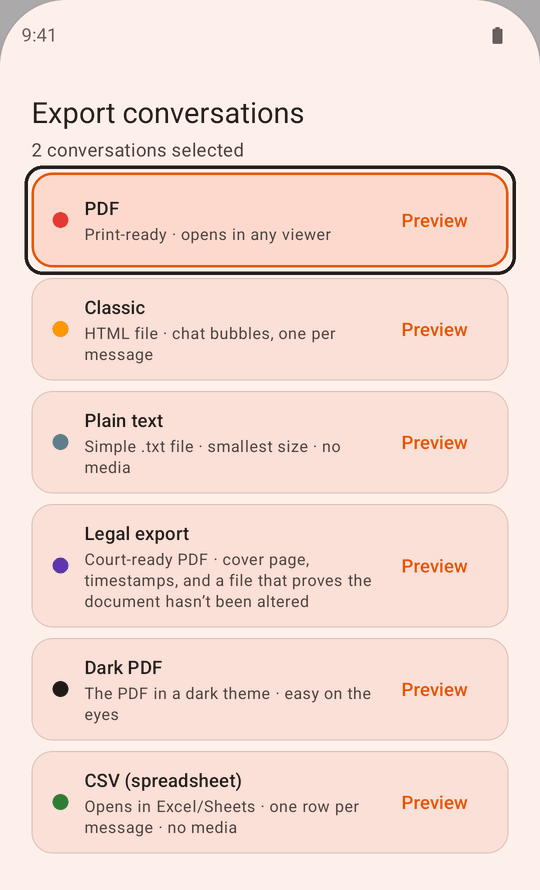
Screenshots, Messages for web and other free options are compared in how to export text messages from Android for free, which also walks through the export with more screenshots.
Step 3
Keep the copy off your phone
A copy that only exists on the phone is lost with the phone. In the app’s file viewer, tap Share and send the file somewhere else:
- Google Drive or another cloud drive: choose Drive in the share menu and pick a folder.
- Your computer: email the file to yourself, or save it to a cloud drive you also use on the computer.
- A second place for anything irreplaceable. Two copies in two places, say Drive and a computer, survive the loss of either.
Large exports with many photos can be too big to email. For those, use Drive or another cloud drive, and check it has enough free space.
Back up automatically
Exports are a snapshot: messages that arrive later are not in them. To keep a copy up to date without thinking about it, schedule backups.
In SMS Backup, scheduled backups are part of the one-time Premium upgrade:
- Open Settings > Scheduled backup and turn on Enable automatic backup.
- Choose daily, weekly or monthly, a time and a format.
- Choose how many backups to keep on Drive, then tap Save. If Google Drive is not connected yet, the app asks you to connect it: each backup is copied there.
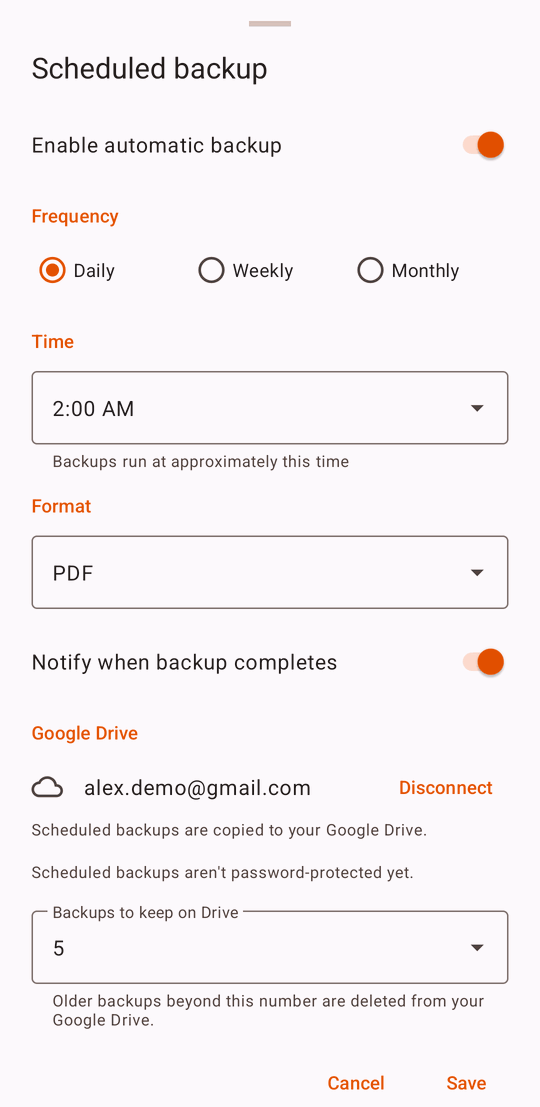
Scheduled backups rotate: once Drive holds the number you chose, the oldest is deleted. That keeps your recent history safe, but it is not a permanent copy. For a conversation you want to keep for good, export it once and store that file separately.
Some phones stop apps running in the background to save battery, which can stop scheduled backups. When you open SMS Backup, it warns you if scheduled backups are overdue and helps you change the setting. Check now and then that a recent backup is in your Drive, too.
SMS Backup & Restore by SyncTech, a free app, can also back up on a schedule to a cloud drive. Its backups are designed mainly for restoring to a phone, though SyncTech also offers ways to view them.
Save the conversations that matter most
Some conversations are worth more than the rest of the phone, such as years of messages with someone you have lost. Others matter for a while: an agreement made by text, a dispute with a landlord, a custody arrangement. Export those now rather than when you need them, and export them again before any of these:
- A new phone, especially if the old one will be wiped, sold or traded in.
- A new messaging app. In the US, Samsung users have to switch from Samsung Messages to Google Messages, and some have found conversations incomplete afterwards.
- A factory reset, or clearing your messaging app’s data to fix a problem. Messages that were never backed up are lost with it.
- A major Android update. On some phones updated to Android 17, a bug hid whole conversations of ordinary texts from some backup apps. Why messages go missing from backups explains it.
- A move to an iPhone. Google’s Android backup cannot be restored to an iPhone, and one person who moved their texts reported that only ordinary texts and picture messages came across, not their chats (January 2025).
To keep the original photos, videos and voice messages as separate files, see how to save pictures and videos from text messages. If the messages are for a court case, keep the full conversation, not a selection; how to print text messages for court covers what lawyers and courts usually ask for.
What saving can’t do
- Bring back deleted messages. Backups and exports copy what is on the phone. A message deleted before the last backup or export is not in it.
- Read every encrypted chat. On Android 16 and newer, end-to-end encrypted chats in Google Messages can be hidden from every app except your default messaging app, so backup and export apps may miss them. How to include them.
- Restore everything with every app. SMS Backup restores ordinary texts (SMS) from its own backups. It does not recreate picture messages, group chats or chat (RCS) messages with their photos and chat features, though the text of Samsung chats can come back as ordinary texts. For moving a whole history to a new phone, Google’s backup is the better tool.
Questions
How do I save text messages forever?
Export them to a file, PDF for most people, and keep that file in at least two places other than your phone, such as Google Drive and a computer. A backup alone is not enough: Google erases it after 57 days without using the phone, and it can only be restored, never opened.
Does Google save my text messages?
If Backup is on, Google backs up your texts and picture messages to your Google account, and chat messages if you use Google Messages. Check Settings > Google > All services > Backup. The backup can be restored to a phone but not read.
Can I save text messages to Google Drive?
Yes. Export a conversation, then use Share to save the file to Drive. With SMS Backup Premium, scheduled backups are copied to your Drive automatically.
How do I save text messages to my computer?
Export them to PDF, then email the file to yourself or save it to a cloud drive you also use on the computer. Google Messages for web shows your conversations on a computer, but cannot save them.
Does my carrier keep my text messages?
Usually not in a form you can use. A carrier’s account page generally shows usage records, such as the number, date and time of each text, rather than what the messages said. Save the messages from your phone instead.
Do I need Premium?
No. Exporting to PDF, Classic HTML and plain text is free, with no message limit. Premium is a one-time upgrade that adds scheduled backups to Google Drive, the court-ready Legal export, CSV, separate attachment files and Dark PDF, and removes ads.
SMS Backup for Android
Save a copy you can read
Export the conversations that matter to a PDF you can open anywhere. The standard PDF is free, with no message limit.