
Android guide
How to export text messages from Android for free
Android has no built-in button that turns a conversation into a file you can read, print or keep. There are still several free ways to do it. Which one fits depends on whether you need a few messages, a whole conversation, or a backup to move to a new phone.
Quick answer: Google Messages has no export option. For a few messages, take a scrolling screenshot. For a whole conversation you can read, print or share, export it as a PDF, HTML or text file with an export app. To move messages to a new phone, use a backup app instead: backups are made for restoring, not for reading.
Which method fits what you need
| What you need | Free method | What you get |
|---|---|---|
| A few messages to show someone | Screenshot or scrolling screenshot | Images of what is on screen |
| To read messages on a computer | Google Messages for web | Your conversations in a browser, to read but not to save |
| Messages moved to a new phone | A backup app, or Google’s built-in backup | A backup file for restoring, not for reading |
| A whole conversation you can read, print or keep | An export app | A PDF, HTML or text file of the full conversation |
1. Screenshots, for a few messages
Every Android phone can take a screenshot, and most recent ones can capture a whole scrolling conversation in one image. After taking a screenshot, look for Capture more on Pixel phones or the scroll capture button on Samsung phones, then extend the capture down the conversation.
Screenshots are quick and need nothing installed. They suit a handful of messages. For anything longer they get unwieldy: a long conversation becomes many images, the text cannot be searched or copied, and messages outside the screen are easy to miss.
To copy the text of a single message instead, press and hold it and choose Copy, then paste it into a note or email. Most messaging apps only copy one message at a time.
2. Google Messages for web, to read on a computer
If your phone uses Google Messages, Messages for web shows your conversations in a computer browser once you pair it with your phone. Reading a conversation on a large screen is often all you need.
It will not save a conversation, though. Its menu has no export option, and the browser’s Print command captures the screen, not the conversation. When we tested it in September 2026 with a 10,000-message conversation open, Print produced a single page showing the conversation list and the last nine messages. It also only works with Google Messages, not Samsung Messages or other apps.
3. Backup apps, to move messages to a new phone
If your goal is to keep your messages when you change phones, a backup is the right tool, and it is free.
- Google’s built-in backup saves your text messages to your Google account automatically and restores them when you set up a new Android phone. You cannot open or read that backup, and Android Police notes that it does not include MMS photos and expires if the phone goes unused for a while.
- SMS Backup & Restore by SyncTech, a free app, saves SMS and MMS to a backup file on your phone or in a cloud drive such as Google Drive, and restores it on another phone. The file is meant for restoring, not for reading or printing.
Neither gives you a document to send to someone. For that, you need an export.
4. An export app, for a readable copy of whole conversations
An export turns a conversation into a document: every message in order, with who sent it and when. You can read it anywhere, search it, print it, or send it to someone.
SMS Backup & Export to PDF is free on Google Play, with ads. The free version exports complete conversations, with no message limit, as:
- PDF, a conversation document for reading, sharing or printing. Photos sent in the conversation appear in the PDF.
- Classic, an HTML file that opens in any browser, with chat bubbles.
- Plain text, the smallest file, with no media.
You can export one conversation or several at once, and limit the export to a date range. Messages are processed on your phone, and you do not need an account.
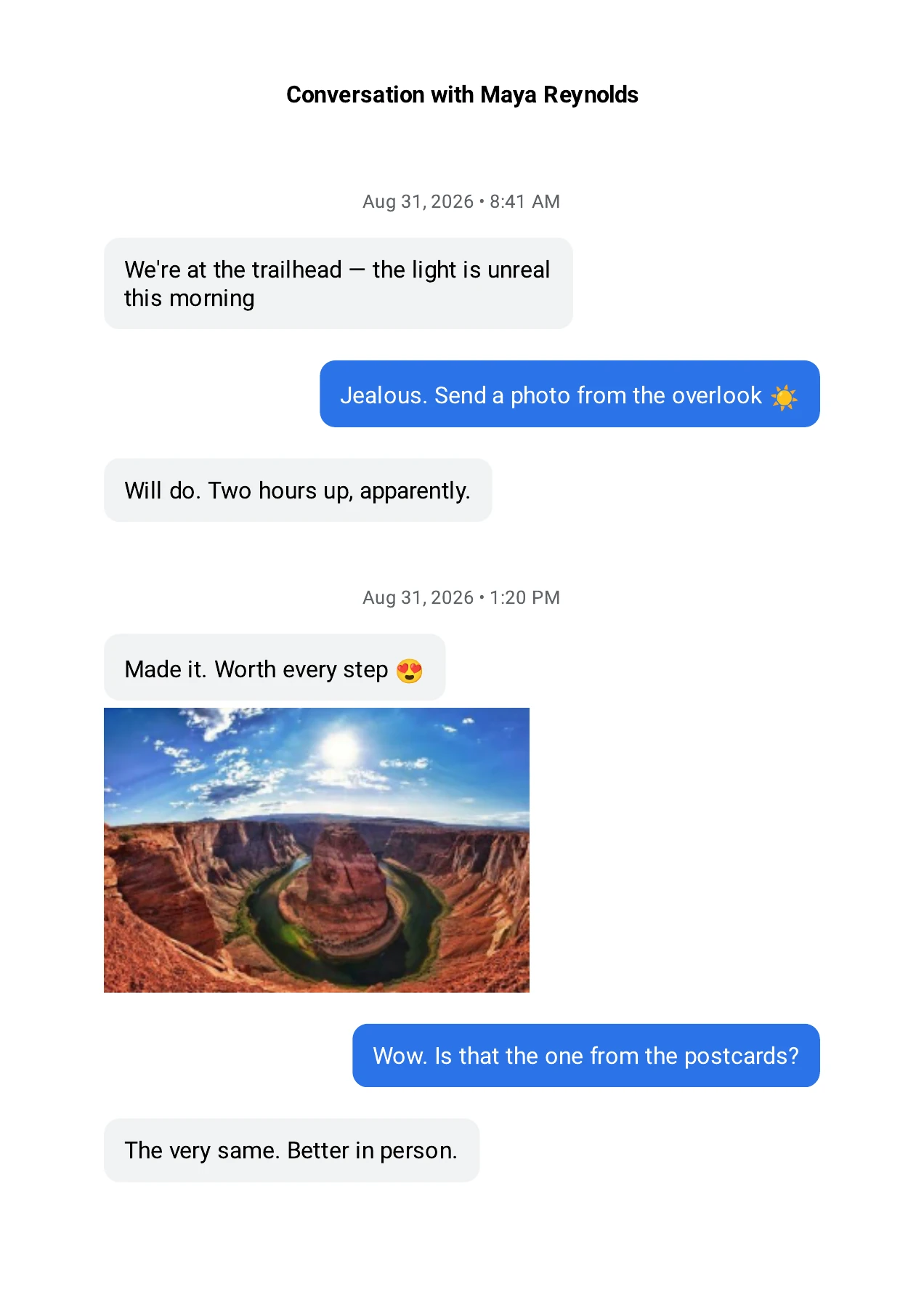
Free PDF
An optional one-time Premium upgrade adds a court-ready Legal export, Dark PDF, CSV for spreadsheets, separate attachment files, scheduled backups and no ads. You do not need it to export or print your messages.
Step by step
Export a conversation to PDF for free
1. Select the conversation
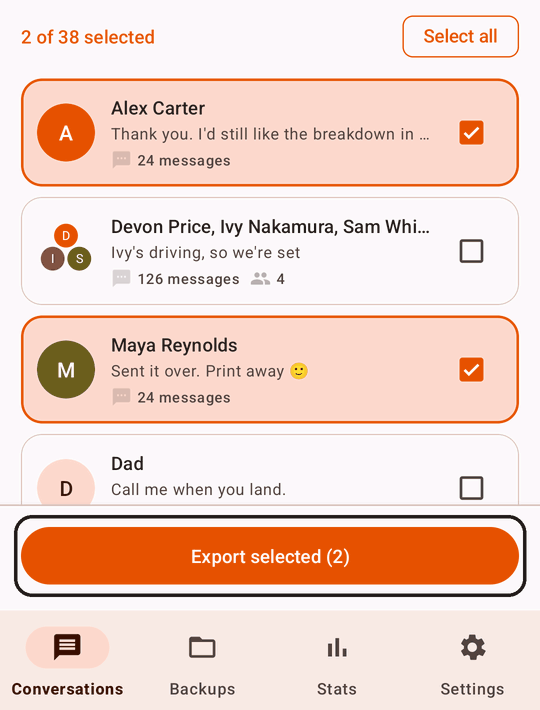
Install the app, allow message access, and open Conversations. Select the conversation you want, or several, then tap Export selected.
2. Choose a format
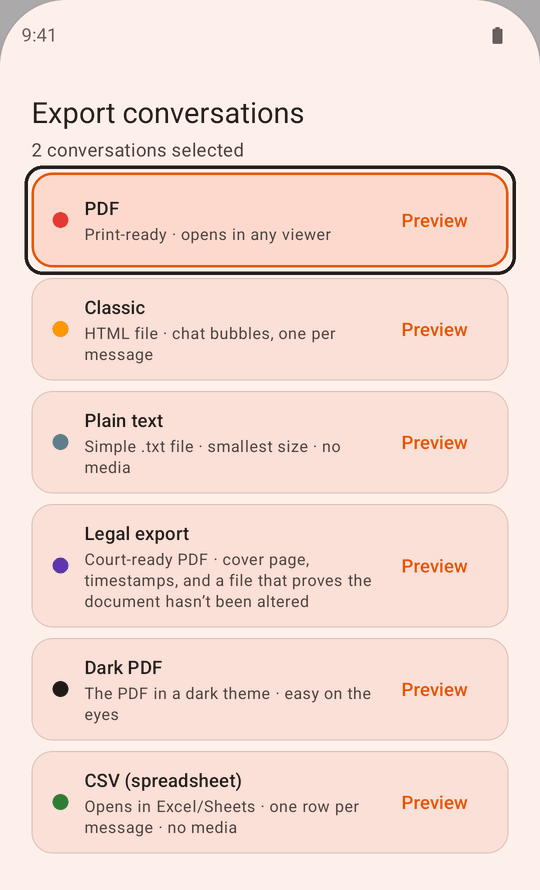
Pick PDF, Classic or Plain text. All three are free. To export only part of a conversation, tap Date range and choose the period. Then tap Start export.
3. Open, share or print the file
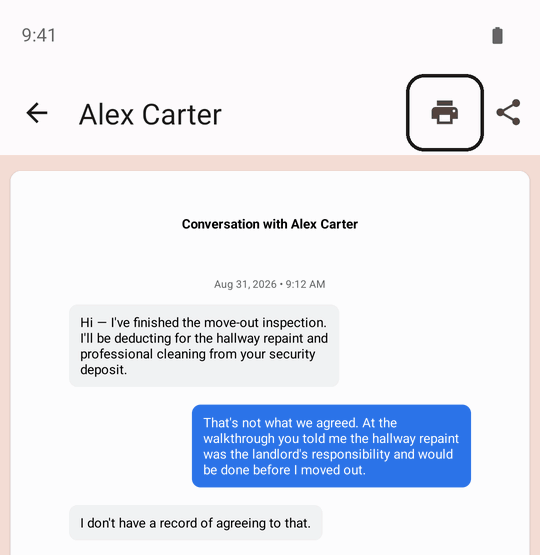
When the export finishes, open it from Backups. In the PDF viewer, use Share to send the file or save it to your computer, or Print to print it from your phone.
Need the messages for a court case or your lawyer? The court printing guide covers what to check before you share them.
What no free method can do
- Recover deleted messages. Every method here copies what is still on the phone. Messages deleted before the export are gone.
- Read every encrypted chat. On Android 16 and newer, end-to-end encrypted RCS chats in Google Messages can be hidden from every app except your default messaging app, so they may be missing from exports and backups. Here is how to check and work around it.
- Export from an iPhone. These methods are for Android phones. WhatsApp and other chat apps also need their own export tools.
Questions
Does Google Messages have an export option?
No. When we checked in September 2026, neither a conversation’s menu in the Google Messages app nor Messages for web offered one. Google Messages backs your messages up to your Google account for restoring on a new phone, but it cannot save a conversation as a file you can open.
Can I export text messages to Excel for free?
SMS Backup & Export to PDF exports CSV, which opens in Excel or Google Sheets, with Premium. For free, the Plain text or Classic HTML export gives you the full conversation in a form you can copy into a spreadsheet.
Are photos included?
In the free PDF, yes: photos sent in the conversation appear on the page. Saving the original photo, video and audio files separately is a Premium option.
Can I export just one conversation, or part of one?
Yes. Select only that conversation, and use Date range to limit the export to a period. Both work in the free version.
Do my messages leave my phone?
No. SMS Backup & Export to PDF creates exports on your phone, and message content is never sent to us. Files only leave the phone when you share them, or if you choose to back up to your own Google Drive.
SMS Backup for Android
Export your first conversation
PDF, HTML and plain text exports are free, with no message limit. Try it with one conversation.