
Android guide
How to save pictures and videos from text messages on Android
Saving one photo from a text is a tap. Saving every photo, video and voice message from a conversation that has run for years is a different job, and your messaging app is not built for it. Here is how to do both, and what can stop a file from being saved.
Quick answer: For one photo or video, open it in your messaging app and tap the download or save icon. For all of them, export the conversation with an app that copies attachments out as files. In SMS Backup, turn on Include attachment files when you export: you get a ZIP with a folder for each conversation, holding every photo, video and voice message the app can read, each named with its message’s date and time. Separate files are part of Premium.
Save one photo or video
Your messaging app can save a single file for you:
- Google Messages: tap the photo or video to open it, then look for a download or save option, as an icon or in the menu. The saved copy usually appears in your gallery, often in a Messages folder. The exact buttons and folder vary with your phone and app version.
- Other messaging apps: open the photo, or touch and hold it, and look for Save or Download. The wording differs from app to app.
That works for a few pictures. It gets slow for a conversation with hundreds of them, because each file is saved separately, and a conversation that runs for years is a long way to scroll.
Where the files really are
A photo you sent may also be in your gallery, and one you saved earlier will be. But the copy that belongs to the message is not a file you can browse to. Android keeps it in its shared message store, inside system storage that file manager apps cannot open, and Google Messages saves the photos from its chats there too. Samsung Messages is the exception: it keeps photos from its chats in storage of its own.
So the way to get them out in bulk is an app that reads the message store with the SMS permission you grant it, and copies each attachment it can read into a file you can keep. That is what the rest of this guide does.
Step by step
Save every photo, video and voice message at once
- Select the conversations. Install SMS Backup, allow message access, and open Conversations. Select one conversation or several, then tap Export selected. The photos from each conversation go into a folder of their own.
- Choose a date range, if you want one. Tap Date range and choose the period. Only the attachments from messages in that range are saved. Date ranges are free.
- Choose a format. Every export also makes a document of the conversation: a PDF, a web page (HTML), a text file or a spreadsheet (CSV). If you only want the photos, the PDF is a good choice, since it shows where each photo appeared in the conversation. Photos appear in the PDF when Include media is on in Settings, which it is unless you turned it off.
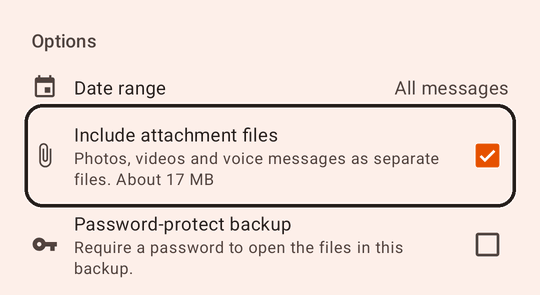
- Turn on Include attachment files. The app may show an estimate of how much space the files will take, based on the sizes the phone reports. Some files can be missing from it, so the ZIP can be larger. This option is part of Premium. You can also turn on Password-protect backup here.
- Tap Start export, then save the ZIP. When it finishes, open Backups. On the export’s card, tap Save to… to keep a copy in a folder you choose, such as Downloads, or Share as ZIP to send it to your computer or cloud storage.
Copying a few hundred photos and videos takes a while, and a large conversation can produce a ZIP of hundreds of megabytes. Leave the phone plenty of free space, more than the estimate.
What you get
Extract the ZIP on your phone or computer, then open the attachments folder. Each conversation has a document and a folder of its own. A simplified example:
backup.zip
├── Alex Carter.pdf
└── attachments/
    └── Alex Carter/
        ├── 2026-09-14_17-12-18_IMG_4031.jpg
        ├── 2026-09-14_17-19-18_IMG_4032.jpg
        ├── 2026-09-15_08-02-51_video000000.mp4
└── 2026-09-15_08-04-10_recording000001.m4a- Sent and received. Photos, videos and voice messages from both sides of the conversation are included.
- Named by date and time. Each name starts with the date and time of its message, as stored on your phone, followed by the file’s name when the message has one. Sorting the folder by name puts the files in the order of their messages. Files that share a name are numbered, so none overwrites another.
- No further resizing. The files are the copies stored on your phone, as they are. The PDF shows smaller copies of photos to keep the document manageable; the files are what you want for printing or keeping.
- Referenced in the document. A video or voice message cannot play on a page, so the PDF shows a line naming it, with the path of its file in the
attachmentsfolder.
Open a few of the photos, a video and a voice message to check the result, and keep a copy of the ZIP off the phone if you want to be sure of keeping them. If you protected the ZIP with a password, you need it to open the files. On a computer, you may need an app such as 7-Zip or WinZip to open a password-protected ZIP.
What can’t be saved
| Situation | What happens | What you can do |
|---|---|---|
| The file is no longer on the phone | The message remains, but its file is gone from the message store. The export marks it “not available on this phone”. | Check photos you saved earlier, your gallery or Downloads, cloud photo backups, older backups, or ask the sender. |
| A picture message was never downloaded | The phone only has a notice that a picture message is waiting. There is no file to save. | Open the conversation in your messaging app and download it first. |
| Encrypted chats in Google Messages, Android 16 and newer | Hidden from every app except your default texting app, photos included. | See why messages are missing from a backup. |
| Photos sent as Samsung Messages chats | Samsung keeps them in its own storage, which Android may not let other apps open. | Save them from the conversation itself. See the Samsung guide. |
One more thing to expect: picture messages (MMS) have a size limit set by the carrier, so phones shrink photos before sending them that way. What you save is the copy that arrived, not the original from the sender’s camera. Photos sent as chats (RCS) can be sent at a higher quality.
Questions
Do I need Premium?
Only for the separate files. Saving photos one at a time in your messaging app is free, and so is a PDF or HTML export that shows the photos inside the conversation. Include attachment files is part of Premium, a one-time purchase of $6.99 USD. Your Google Play price may vary by country.
Does this delete anything from my phone?
No. The export copies the files. Your messages and their photos stay where they are.
Can I save only the photos from one person?
Select only the conversation with that person. In a group conversation, the folder holds the photos everyone sent.
Can I save only some of the photos?
You can narrow it down by conversation and date range. Within that, the export saves every attachment, and you can delete the ones you don’t want from the folder afterwards.
Can I put the photos back on a new phone as messages?
No. SMS Backup restores text messages only. The files are for keeping, printing and sharing.
SMS Backup for Android
Get every photo out of a conversation
Export a conversation with its photos, videos and voice messages as files, named by date and time.