
Android guide
How to print text messages from Android
Google Messages has no Print button. You print a screenshot, or you save the conversation as a PDF and print that. Which one works depends on how many messages you need on paper.
Quick answer: For a few messages, take a screenshot and print the image. For a whole conversation, export it to a PDF with an export app such as SMS Backup, open the PDF and tap Print. Your phone can print over Wi-Fi to a compatible printer. Without a printer, choose Save as PDF and print the file somewhere else.
Which way fits
| What you need on paper | How to print it | Good to know |
|---|---|---|
| A few messages | Screenshot, then print the image | Free and quick. Shows only what was on screen. |
| A whole conversation, or a period of one | Export a PDF, then print it | The conversation in order, with dates and photos. Free with an export app. |
| Messages for court or your lawyer | A PDF with full timestamps and page numbers | See the court printing guide. |
Print a few messages from a screenshot
Open the conversation and scroll up to the first message you need, then press Power and Volume down together to take a screenshot. Most recent phones can extend it down the conversation: tap Capture more on a Pixel, or the scroll capture button in the toolbar on a Samsung. If the Samsung toolbar does not appear, turn on Show toolbar after capturing under Settings > Advanced features > Screenshots and screen recorder.
Then open the screenshot in your gallery app and look for Print in its menu. Not every gallery app has one. If yours does not, send the image to a computer and print it from there.
Screenshots work for a few messages. A long conversation turns into many tall images that print as small text or split across pages, and a message just off screen is easy to miss. Past a screen or two, a PDF is less work.
Step by step
Print a whole conversation as a PDF
Printing Google Messages for web from a computer looks like a shortcut, but the browser prints the screen, not the conversation. In our September 2026 test with a 10,000-message conversation open, it printed a single page with the conversation list and the last nine messages.
An export app turns the whole conversation into a PDF first. These steps use SMS Backup, which exports PDFs for free with no message limit. Other free ways to save a conversation are compared in how to export text messages from Android for free.
1. Select the conversation
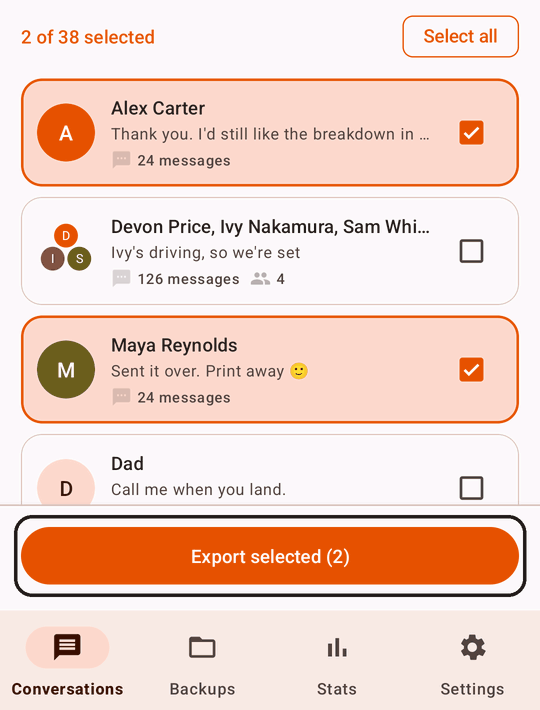
Install the app, allow message access, and open Conversations. Select the conversation you want to print, then tap Export selected.
2. Choose PDF and the period to print
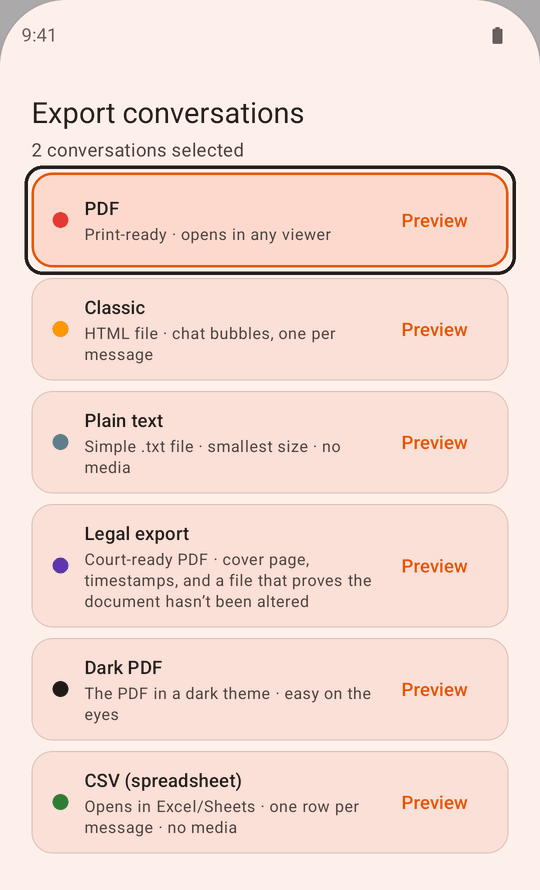
Keep PDF selected.
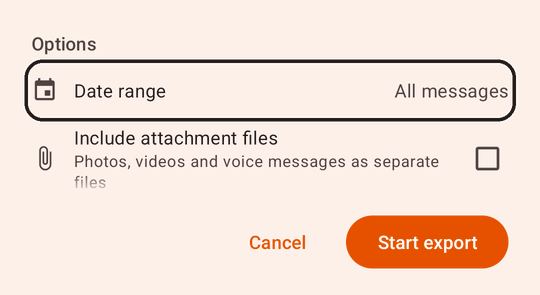
To print only part of the conversation, tap Date range under Options and choose the period. On a smaller screen, scroll down past the formats to reach it. Printing a month instead of five years can save you hundreds of pages. Then tap Start export.
3. Open the PDF and tap Print
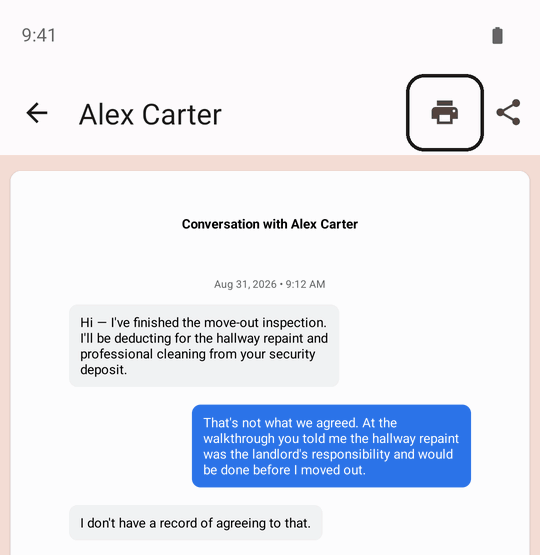
When the export finishes, open it from Backups and open the conversation’s PDF. Tap Print in the viewer’s top bar. Android’s print dialog opens, where you choose the printer, paper size, pages and number of copies.
Set up printing on your phone
Android prints to printers on the same Wi-Fi network through a print service. Most phones come with one that finds many common printers on its own. If your printer does not appear in the print dialog:
- On a Pixel, open Settings, then Connected devices > Connection preferences > Printing. Check that a print service is turned on, or tap Add service to install one. Google explains the steps in Print from your device.
- On a Samsung Galaxy, open Settings and search for Printing. Tap Download plugin to install your printer maker’s service from Google Play. Samsung’s printing instructions also show how to add a printer by its IP address.
On other phones, search Settings for Printing. Most printer makers publish a free print service app on Google Play. Install the one for your printer’s brand, make sure the printer and phone are on the same Wi-Fi, and open the print dialog again.
No printer? Three ways to print anyway
- Save as PDF, then print elsewhere. In the print dialog, choose Save as PDF instead of a printer. With an exported PDF you can skip this step, since the file is already a PDF.
- Send it to a computer. Tap Share in the PDF viewer and email the file to yourself, or save it to Google Drive. Then open it on a computer with a printer.
- Use a print shop or library. Many print shops and public libraries print a PDF that you email or upload to them. Check how your local one accepts files before you go.
Before you print
The Dark PDF option, part of Premium, is easier to read on a screen but uses far more ink. For paper, use the standard PDF.
What the printout shows
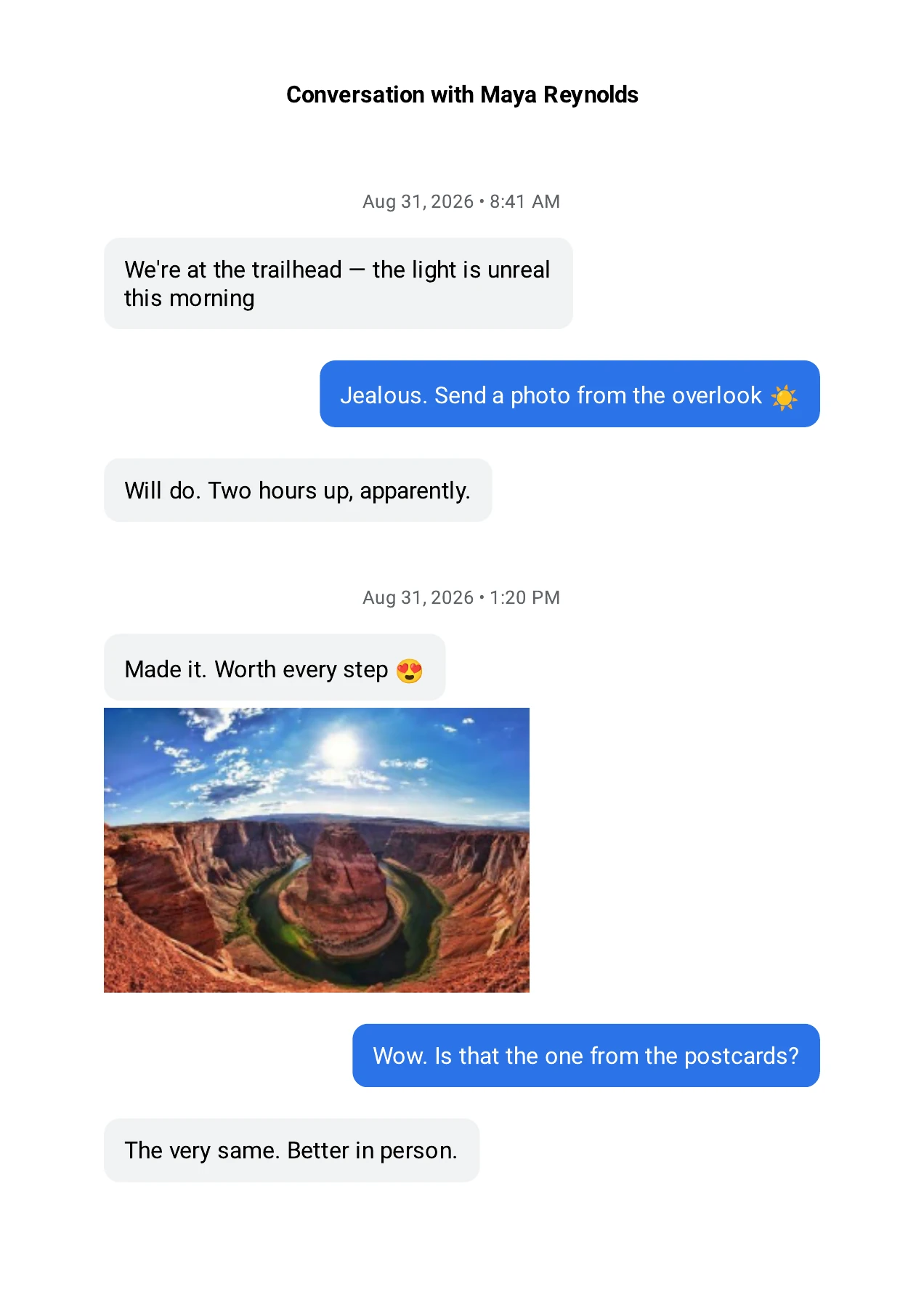
The free PDF prints the conversation in message bubbles, like a chat:
- The contact’s name on the first page.
- The date and time at the first message of each day, and after any gap of more than two hours. The time is not printed beside every message.
- In a group chat, the name or number of whoever sent each incoming message. Your own messages are set apart by their position on the page.
- Photos sent in the conversation, on the page, as long as the app can still read the photo file. Other attachments, such as videos, appear as a note saying what was sent, since paper cannot play them.
- No page numbers.
Free PDF
If the printout is for court or your lawyer, you may need more than that. Legal export, part of a one-time Premium upgrade, prints the sender and the full date and time, with time zone, on every message. It also adds numbered pages, a cover sheet and optional Bates numbers. The court printing guide explains each part, and what to check with your lawyer.
Questions
Can I print text messages directly from Google Messages?
No. When we checked in September 2026, Google Messages had no Print option, and its web version prints only what is on screen. You can print a screenshot of the messages, or export the conversation to a PDF and print that.
Can I print just some of the messages?
Yes. Use Date range when you export to include only that period, or set a page range in the print dialog. For a few messages, a screenshot is the simplest.
Will the photos print?
Photos sent in the conversation appear in the PDF, so they print with the messages, as long as Include media is on in the app’s Settings. It is on unless you turned it off. If a photo file is no longer on the phone or cannot be read, the PDF shows a note in its place. Videos and voice messages also show as a note. To keep the original files, see how to save pictures and videos from text messages.
Will the other person know I printed our messages?
No. Exporting and printing happen on your phone, and nothing is sent to the other person. SMS Backup creates exports on your phone, and message content is never sent to us.
Why is there no Print button in the app?
Print appears once a PDF has opened, on phones that support Android printing. If you do not see it, use Share to send the PDF to a computer or another app and print it from there.
Some messages are missing from the printout. Why?
First check the date range. On Android 16 and newer, encrypted chats in Google Messages can be hidden from every app except your default texting app. See why messages go missing, and how to include them. A new export copies only what is still on the phone, so messages deleted before it are not included. A PDF or screenshot you saved earlier can still be printed.
SMS Backup for Android
Print your first conversation
PDF exports are free, with no message limit. Export one conversation, check the preview and print it from your phone.